

doximityscribe
May 15, 2026
Doximity Scribe Smart Edits: The Fastest Way to Refine a Scribe Note

# Documentation
# Progressnote
One-tap tools for billing, length, pronouns, and anything else.

Doximity Team
The note Scribe generates from your dictation is usually close. Smart Edits is designed for the gap between "close" and "ready to sign." Instead of editing manually, you make one-tap adjustments that Scribe applies instantly.
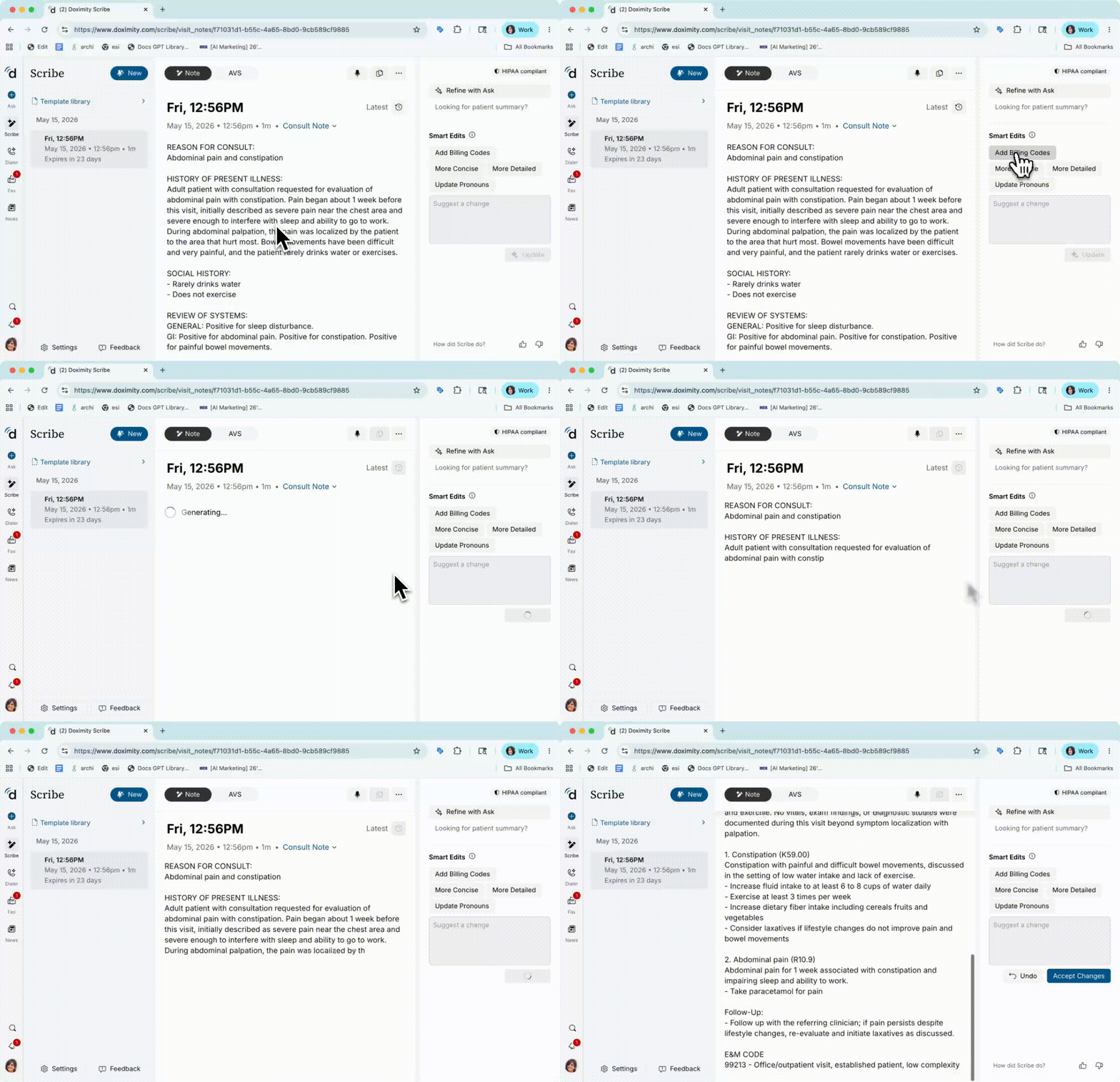
Add Billing Codes
Tapping " Add Billing Codes " appends billing documentation to your note based on its clinical content. This is the fastest way to make sure the note supports the visit's billing without switching contexts or referencing a separate coding resource.
Billing documentation added by Smart Edits should still be reviewed before signing. "Add Billing Codes" surfaces relevant codes and adds supporting language, but accuracy depends on what was captured in the note. A quick review before you sign takes seconds and avoids downstream issues.
More Concise
When a note ran longer than the encounter warranted, "More Concise" tightens it without removing clinical substance. This is useful for routine follow-ups that don't require the same depth as a complex new patient evaluation, and for notes where Scribe captured more ambient detail than was clinically relevant.
More Detailed
When a note needs more depth, a specialist needs to see the reasoning, or the documentation needs to reflect the full complexity of the encounter, "More Detailed" expands the note's content. It's also useful for notes generated from brief dictations where the output needs to match the actual clinical complexity.
Update Pronouns
"Update Pronouns" corrects pronoun usage throughout the entire note in one step. If a patient's preferred pronouns weren't reflected in how the note was generated, this fixes it without a manual find-and-replace pass through the document.
Suggest a change
The free-text field at the bottom of Smart Edits handles anything the one-tap options don't. Describe the adjustment in plain language and Scribe applies it. Restructure a specific section, change how a diagnosis is framed, add context that didn't make it into the dictation -- this is where those requests go.
When to use Refine with Ask instead
For requests that are more complex than a single adjustment, the "Refine with Ask" button hands your note directly to Doximity Ask. From there you can make multi-step edits, request a patient summary, or work through the note conversationally. Smart Edits is for fast cleanup; Refine with Ask is for anything deeper.
Comments (0)
Popular

Dive in
Related
Video
Doximity Scribe Webinar: Templates, Smart Edits, and AI Workflows
By Doximity Team • May 20th, 2026 • Views 513
Education
Your Scribe Note Just Finished. Here's how to get it into your EHR.
By Doximity Team • Sep 3rd, 2026 • Views 15
Education
How to Review a Doximity Scribe Note in Under 60 Seconds
By Doximity Team • May 15th, 2026 • Views 74
Education
How to Set Up Doximity Scribe for Your Specialty
By Doximity Team • May 15th, 2026 • Views 244
Video
Doximity Scribe Webinar: Templates, Smart Edits, and AI Workflows
By Doximity Team • May 20th, 2026 • Views 513
Education
How to Review a Doximity Scribe Note in Under 60 Seconds
By Doximity Team • May 15th, 2026 • Views 74
Education
How to Set Up Doximity Scribe for Your Specialty
By Doximity Team • May 15th, 2026 • Views 244
Education
Your Scribe Note Just Finished. Here's how to get it into your EHR.
By Doximity Team • Sep 3rd, 2026 • Views 15